Published by Jeremy. Last Updated on October 26, 2026.
Disclaimer: This Week in Blogging uses demographic data, email opt-ins, and affiliate links to operate this site. Please review our Terms and Conditions and Privacy Policy. To see more of our content, set us as a Preferred Source in Google.
Ever since Facebook started to force creators with pages to pay for Meta One to post links, I have done everything in my power to try and get off social media as much as possible.
Yes, I need to be on it for work- sometimes even for long periods of time (sadly). But given that the rest of it is one giant time suck, with most feeds not even showing me what I want to see these days, it felt like a good time to do something about it.
One lament I always had was that my phone does not have easy ways to set app restrictions inherently. Phone producers, much like social media, seem to really, really want you on your phone all the time. So, we had to start searching for 3rd parties to find a solution that worked for us as simply taking apps off the home screen only worked so well.
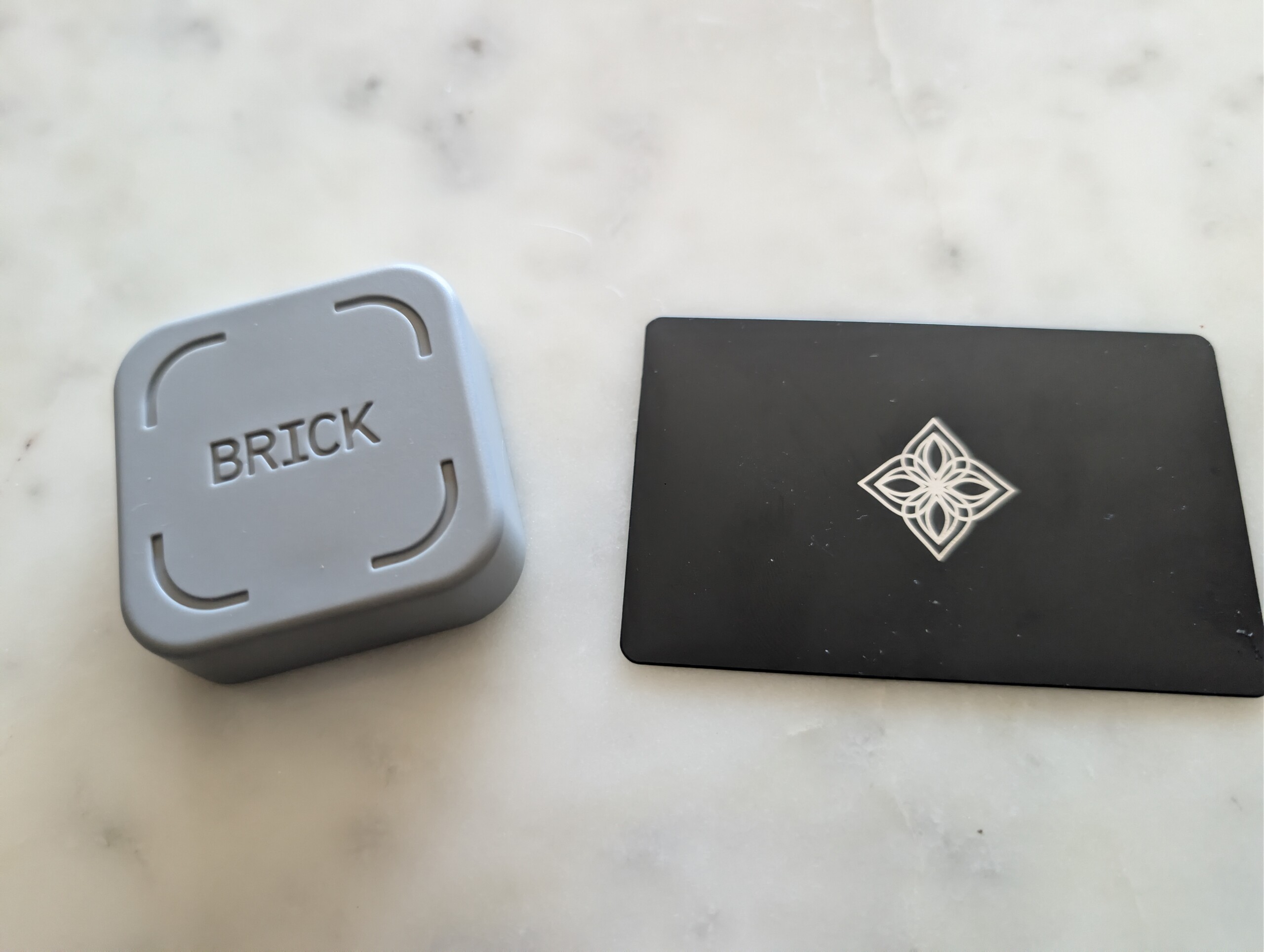
It was because of this that I discovered two devices/services that can block apps, Brick (a tappable square device) and Bloom (a credit card-shaped device with a new tappable device like Brick), and decided to try out both to see which is better!
Although you could argue pros and cons for each, and may find your personal scenario lends you to one over the other, I wanted to break down some of these similarities and differences in this one as, to be honest, they’re both very similar!
Note: I am still working my way through all the functionality on these devices and my opinions may change in the future. This article is based on my initial testing on each device. This review may be updated in the future if any extra opinions, quirks, or other scenarios present themselves that I have not noticed yet.
Brick – Tappable Device
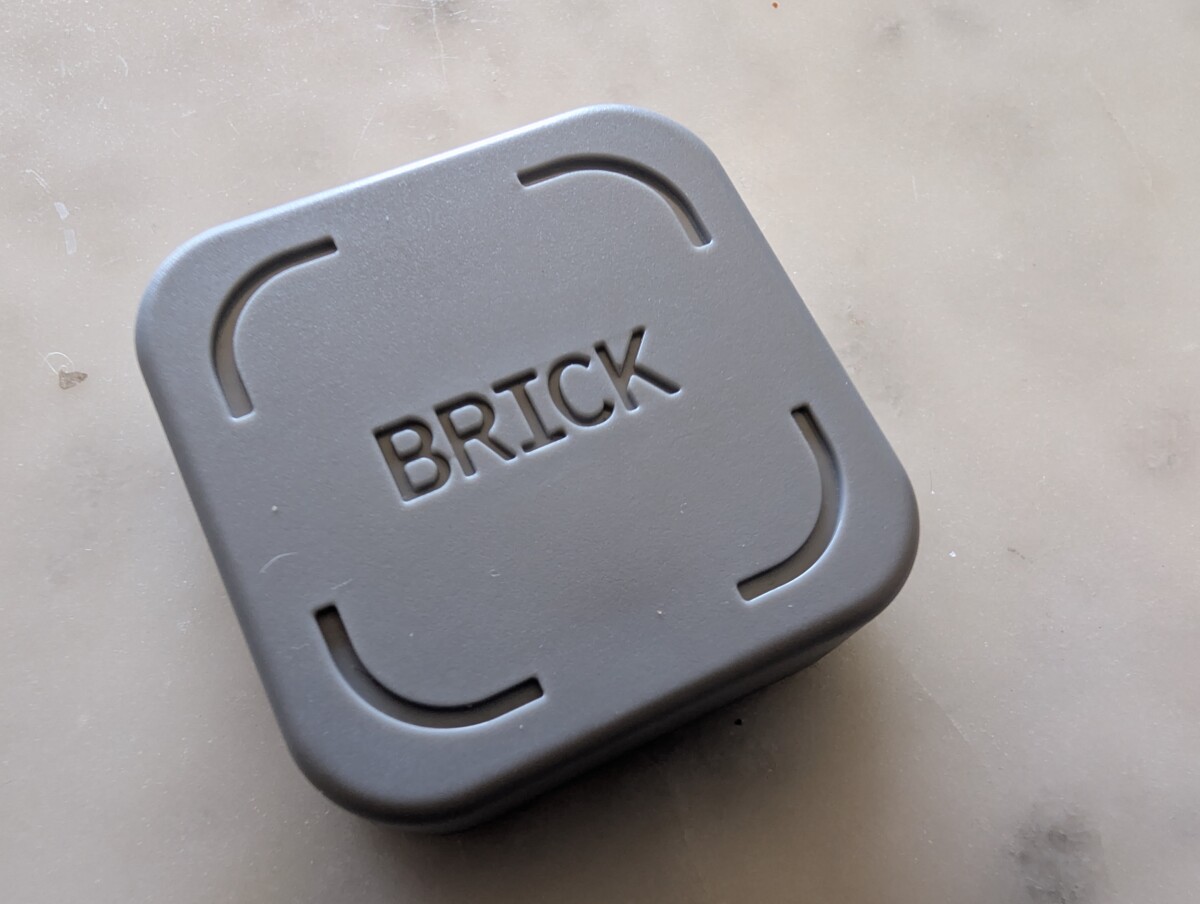
Brick is the first device that I found and tested, and it is a tappable plastic block with magnet, synced to a corresponding app.
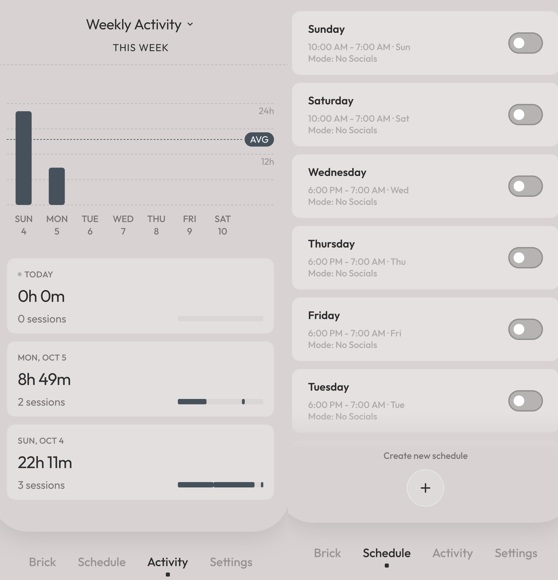
The app has some great functionality to let you choose what apps to exclude when “Bricked” and you can even setup timetables for when your apps will auto lock and unlock. For example, I can Brick my social apps starting at 6 pm on weeknights through 7 am the following day, and after 10 am on weekends.
Brick’s app is pretty barebones beyond that, and has a tab to show overall Brick activity and nominal setting changes.
This is a good device for those who want to lock out while in the house, because you can have the small device somewhere nearby (like on a coffee table) in the event you need to unlock. But if you head out away from your device and need an unlock, they also provide five emergency UnBricks that you can use in a pinch (which can be refilled with an email to tech support) and also additional “strict mode” options that help bypass workarounds like unlocking apps via deleting the Brick app outright. (I did not enable this.)
One downside I was having with Brick is that it seems to have some compatibility issues with my Google Pixel 9 Pro, namely the accessibility setting, which needs to be enabled for Brick to function. For me, this setting keeps turning itself off after periods of inactivity and I have no clue why. Brick’s tech support has been great and very fast to respond; however, when this times out my Brick settings turn off automatically even within a set schedule. (Note: I am still troubleshooting this.)
Most of the time this is fine, because the amount of time it takes to time out generally means it happens when I am asleep, but your mileage may vary on some compatibility concerns.
So if you’re looking for a decent enough device to minimize app usage, particularly while at home, Brick is a decent option.
- Pro – The physical device is small, but of a sufficient size that you would likely not have on your body at all times. So this one is great for blocking apps and only being able to unlock when touching your device at home or on a pre-set timer. Brick also gives five emergency unlocks which can be re-filled by emailing support, which is nice in the event of an emergency. Brick is also HSA/FSA eligible on a select purchase website.
- Con – If you are frequently doing things away from home and want flexibility to unlock as you go, you would need to set your unlock timing accordingly or take the Brick with you, which may be impractical for some- particularly content creators/bloggers who are away from home a lot. Likewise, my Pixel 9 Pro has troubles keeping settings toggled on, so it un-Bricks itself after periods of inactivity (your mileage may vary by phone/system types). If you unlock your phone and re-lock during a timed schedule period, it also appears to treat it as a manual lock outside of the schedule and requires a physical unlock when finished.
Bloom – Tappable Card and Block
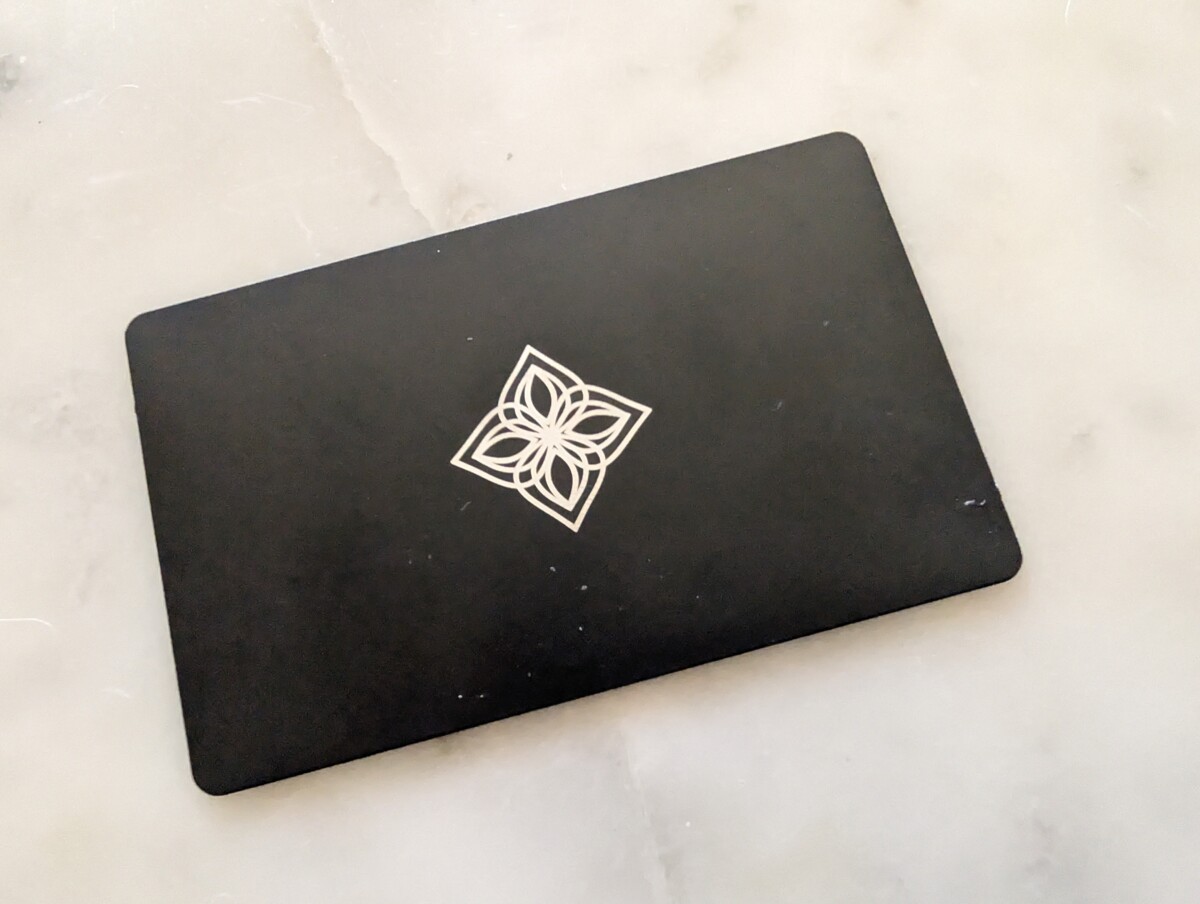
Bloom functions very similarly to Brick in almost every respect, and comes in the form of a tappable credit card as well as a newer block (similar to Brick).
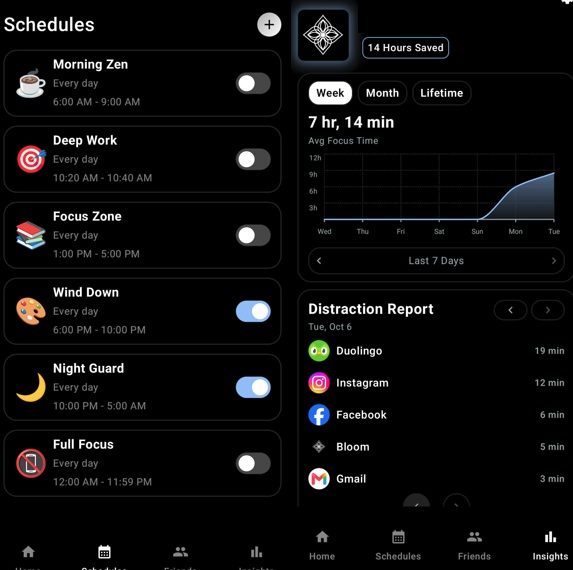
Most functionality via Bloom’s associated app is quite similar as well, where you can set schedules for locking/unlocking, different modes for what apps you’d like to lock/unlock (say, one for work, one for creative time, one for sleep, etc.) and admittedly has a bit more robust data reporting, too. One of my favorite features in Bloom specifically is that it shows app time not only for blocking hours, but usage times for every single app you open on your phone.
You may be surprised what apps are consuming most of your time!
Bloom also has some additional settings for unlocking, such as up to three five minute breaks that you can build into any mode (great for me as a creator- I can still log-in and post when needed), longer Emergency Exits per month, and exits are seemingly added every 30 days.
This could be good or bad, depending on if you are addicted to social media or not. If you regularly abuse unlocks as a workaround, Bloom has a bit more opportunities to do so. But if you are disciplined and can work within those confines even with an easy-to-reach break/unlock button being present, then Bloom still works great.
Personally, I like having access to five minute unlocks if only because it gives me flexibility for work. But if I did not “need” to access social from time to time, I also could see abusing this very easily- albeit for a max of five minutes at a time.
At first, I was not particularly in love with the credit card format of Bloom; however, I since got access to their Brick-like block after ordering on a pre-sale and think the combo is perhaps the best of all worlds. (At the time of publishing this review, the block was only available on their website.)
To me, a credit card for lock/unlock has both risks and rewards. The risk is, naturally, that you could lose it when kept in a wallet. But the perk is you can keep it with you if you need to be a bit more flexible with unlocks beyond five minute breaks.
That said, once my tappable block arrived for a Brick-like equivalent that is permanently kept at home, I think it is the best of all worlds as a content creator- one to take with me on the go and one to keep permanently at home (keeping the potential to abuse unlocks a prominent risk, of course).
Likewise, I am also having accessibility issues with Bloom on my Pixel Pro 9. At first, I thought it was happening less than Brick, but after a system update it seems like it is also impacted intermittently (I am investigating this still). Despite this, both services still have some quirks- like pre-set schedules only working when they turn on automatically. If you tap to unlock a schedule, and then re-lock manually, your schedule will seemingly be ignored (even if locking during a previously arranged schedule period) and will need to unlock when you finish.
Minor issues impacting both, but, overall, I think Bloom has some nice functionality all the same.
- Pro – The slim card is sized the same as a credit card and can be easily used on the go- perfect for those who are away from home a lot and may need to unlock apps on the fly. The new block add-on is also a great option to have a permanent device at home, too. The app has more data tracking involved, including showing daily use time on an app-level, which I appreciate as well as a five-minute unlock feature that works great for me as a blogger. Bloom is also HSA/FSA eligible on a select purchase website and was a bit cheaper than Brick overall.
- Con – If you have the card on you, it takes a bit more dedication to avoid reaching into your wallet and unlocking your phone (the same concern applies to the break options). Likewise, I would worry that having a single card in a wallet that goes with you is more of a risk for loss, such that you may want to have a backup stored elsewhere (making it a bit more expensive if you buy multiples). Like Brick, if you unlock your phone and re-lock during a timed schedule period, it also appears to treat it as a manual lock outside of the schedule and requires a physical unlock when finished. Finally, I am also having some accessibility setting quirks with my Pixel, which is unfortunate.
Which is Better? Different Use Cases (But I Like Bloom)
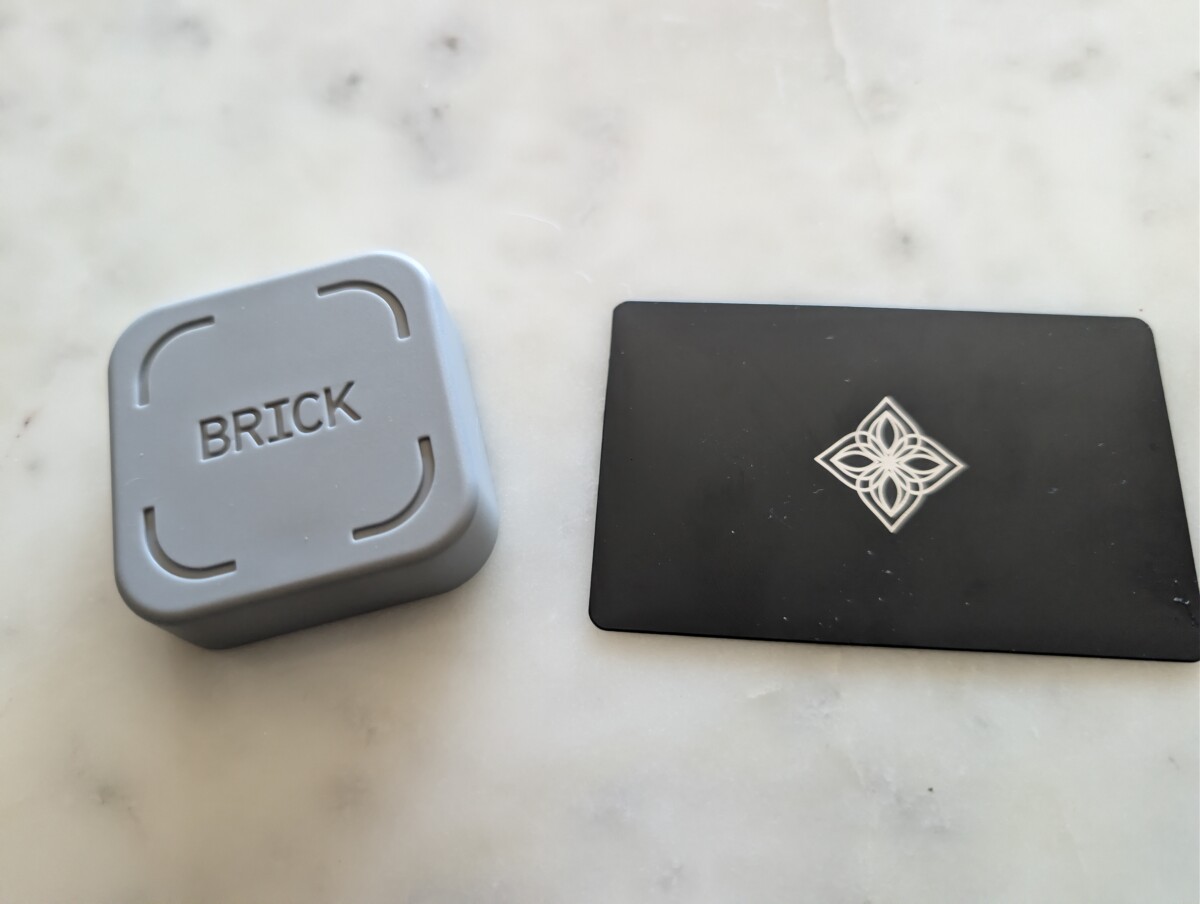
While both devices achieve more or less the same goal with some minor variations, in practice, there are some key differences between the two that may help you decide which one to purchase. Namely, Brick is a physical block whereas Bloom has both a tappable card and a physical block available.
To me, one of the biggest differences is where you’d physically place and/or carry each device, as tapping is an often necessary mechanism to unlock apps on your phone for each outside of set schedule apart from the breaks and emergency exit features previously noted.
Brick, in being a square device, is not something I’d treat as portable even if it is small. I do not feel like I want to get in the habit of taking this one on the go, if only because I could run the risk of losing it- perhaps even more than a credit card.
Most users will likely want to pick a place in house as a permanent home for their Brick for locking/unlocking purposes, and never move it thereafter. For me, this is my coffee table- present, available, but always just a bit too far out of reach at any given moment. For others, it may be your entryway, office, or something else. (The magnetic backing gives more placement options, too!)
Bloom, on the other hand, also has a credit card-shaped device, meant, in my opinion at least, to be placed in your wallet and used on the fly, in addition to a tappable block that I use virtually the same as Brick.
For me, it is now always in one of my credit card slots in my wallet to use whenever needed. I can have my apps locked while I’m out and about, but if I need to post something quickly on social media, I can either use a five minute break or pull the card out, tap to unlock, post, lock my apps, and get back to enjoying my life (with its corresponding block stays permanently on my coffee table at home).
These can be two fairly different use cases despite functioning more or less the same.
If I lock my phone with Brick and leave for the evening, I am locked out until either my time expires, an accessibility feature times out on accident (a weird quirk I’m seeing on my phone), or I go home and tap the device. But on the other hand, Bloom feels a bit more portable to allow for unlocking on the go and has more built-in break options as far as I can tell- which is helpful for me as I am regularly away from my desk and sometimes need to get on for work.
So if you are a content creator or blogger and are looking to decrease your social time, this may be an important consideration- one that may be tied to just how concerned you are with your social media use.
Are you primarily in your home and office and want fewer distractions? Brick may make sense as you will likely always be near the unlock device when needed. Are you on the move and out in different areas of your city or world and still need periodic access to apps? Bloom’s portable card may be a more logical option, insofar as you can keep the card secure or have a backup for an emergency. Are you incredibly addicted to social media and would abuse any workarounds, or would just unlock whenever you wanted anyway? Brick may be a good option if you physically don’t have the device near you during lock-out times- Bloom makes it a bit easier to unlock on the fly unless you set your break settings to zero.
For me, after having purchased both, I do admit that I like them for different reasons- Brick is great for when I am at home and/or want to be fully locked out, while Bloom is great for when I am out but maybe need quick access for work purposes.
That said, now that Bloom also has a tappable block, I use the block for the home and the card for away, and generally trend towards Bloom as my preferred option simply for the flexibility it provides. Throw on a more defined app with stats on app usage and Bloom takes the edge for me ever-so-slightly.
That said, if you are able to work within the limitations of each, then either can be a great option to help reduce your screen time.
I look forward to revisiting this one in six months or a year to see how I’m doing!
Join This Week in Blogging Today
Join This Week in Blogging to receive our newsletter with blogging news, expert tips and advice, product reviews, giveaways, and more. New editions each Tuesday!
Can't wait til Tuesday? Check out our Latest Edition here!

Increase your blog's revenue with Raptive!
Add premium display advertising on your blog with Raptive- accepting blogs starting at 25,000 pageviews per month! (Additional terms may apply.)
Upgrade Your Blog to Improve Performance



Check out more of our favorite blogging products and services we use to run our sites at the previous link!
How to Build a Better Blog
Looking for advice on how to improve your blog? We've got a number of articles around site optimization, SEO, and more that you may find valuable. Check out some of the following!